PNG to SVG: Count Exported Paths
Use the PNG to SVG tool to convert the transparent logo or gradient below, then open the saved SVG in a text editor and check its path count, image elements, and appearance against the source PNG.
Two PNGs under the same settings
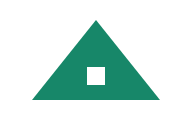
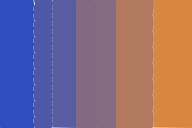
I converted a transparent green logo and a blue-to-orange gradient, both 192 × 128 pixels, with Balanced precision and 8 colors. I opened each downloaded SVG as XML and counted the elements.


Check paths and embedded images
In transparent-logo.svg, search for the opening tags <path and <image. The logo has four path elements and zero image elements. Use the element name when you count, so repeated coordinates inside a path do not count as separate shapes.
In gradient.svg, the same check gives seven paths and zero images. If you need editable vector shapes, look for paths that describe the artwork and inspect any <image> you find. If your export contains the original bitmap where you need editable shapes, retrace the source and repeat the check with the new SVG.
Check which logo paths are visible
Open transparent-logo.png and its SVG against the same contrasting background. In the SVG, the opening path has opacity="0", so it counts in the XML but paints nothing. The white detail is a separate path. Use the PNG to tell which areas should stay clear and which white areas belong to the logo.
If your version shows a solid background where the logo PNG is clear, locate the path covering that area before editing. If that path only paints the unwanted background, hide it and compare the saved result against the PNG again. Keep the white detail visible.
Check the gradient fills
Compare gradient.png with its SVG at the size you plan to use. In the SVG, each of the seven paths has a solid RGB fill, and there is no <linearGradient> or <radialGradient> element. Judge whether the color bands are acceptable at your intended size.
If you need a smooth editable gradient, use the gradient PNG as a reference and redraw the fill in your vector editor. Reopen the revised SVG and check the appearance against that PNG. If you keep the traced fills, use the visible result to judge the export rather than the path count alone.
These results cover the two supplied PNGs at the stated settings. I did not test alternate settings, photos or imports into design or cutting apps. Browse the conversion guides for more saved-file checks.