SVG TO PNG · TROUBLESHOOTING
Why does my SVG to PNG have a white background?
White can come from your viewer, the export background setting, or a white shape inside the SVG. Select Transparent first. If white remains, inspect the source artwork. A transparent export does not erase a white rectangle already in the drawing.
Open SVG to PNG ↗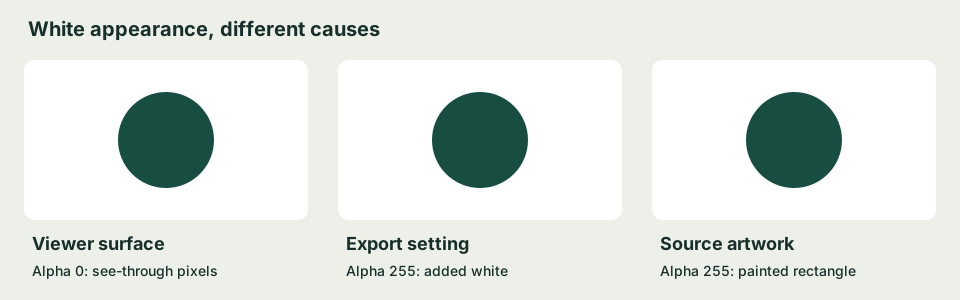
Our four-case alpha test
We made four exports with the actual SVGtopix converter. Each PNG was 160 × 100 pixels, using Standard render. We decoded the exported PNG bytes and read the corner at (0, 0) and center at (80, 50), rather than inspecting a screenshot. Our circle was centered at (80, 50), radius 30, fill #184d41, leaving the corner outside the artwork.
| Case | Export background | Corner RGBA | Center RGBA | Bytes |
|---|---|---|---|---|
| transparent-margin | transparent | [0, 0, 0, 0] | [24, 77, 65, 255] | 2122 |
| white-setting | white | [255, 255, 255, 255] | [24, 77, 65, 255] | 2097 |
| white-source | transparent | [255, 255, 255, 255] | [24, 77, 65, 255] | 2097 |
| half-opacity | transparent | [0, 0, 0, 0] | [24, 78, 66, 128] | 2118 |




Alpha 0 means clear; 255 means opaque; 128 is approximately half opacity. The byte counts describe this browser run, not universal file sizes.
Identical white pixels, two different causes
In white-setting, the source had no background shape and we selected White. In white-source, we selected Transparent but added a page-sized white rectangle behind the circle. Both produced [255, 255, 255, 255] at the corner and encoded to 2,097 bytes. Neither visual appearance nor equal file size identifies the cause: inspect the source and the export setting separately.
The half-opacity case stayed partly transparent
The half-opacity corner was clear and its center alpha was 128. Its decoded center RGB was [24, 78, 66], compared with [24, 77, 65] for the opaque circle. Inspect alpha separately instead of requiring exact RGB equality across transparency levels. We report the difference without claiming to have isolated the browser rounding step responsible.
Find the source of white
- Change the viewing surface. Place the PNG on a dark background. If the apparent white area takes that color, it was transparent and your first viewer supplied the white surface.
- Check export settings. Select Transparent in SVGtopix. White and Custom color deliberately paint a backdrop.
- Inspect the source. Look for a large rectangle, embedded picture, or another painted background. Remove unwanted background artwork in your own source editor. Do not remove every white shape: white lettering and highlights may be intentional.
- Inspect the final format. A later JPG conversion cannot preserve transparency. Check the downloaded file and any later export, not just an upload form's filename.
Repeat our exact experiment
Download the original SVGs below. The transparent-margin sample contains one circle. White-source adds one full-size white rectangle before that circle. Half-opacity changes only the circle opacity to 0.5. These controlled changes separate the export setting from painted artwork.
- transparent-margin.svg · our measured PNG
- white-setting.svg · our measured PNG
- white-source.svg · our measured PNG
- half-opacity.svg · our measured PNG




Open the converter, load one sample, keep 160 × 100 dimensions and choose Standard render. Select Transparent for transparent-margin, white-source and half-opacity. Select White only for white-setting. Convert and download before moving to the next case. Compare the actual result with our corresponding PNG; changing the viewing surface alone should not change its stored alpha.
Our measurement record includes exact SVG markup, background settings, byte sizes and decoded pixels. To repeat the pixel check, load the downloaded PNG into an image, draw it onto a same-sized canvas and inspect ctx.getImageData(0, 0, 1, 1).data[3]. For the center use (80, 50). The fourth channel is alpha.
We sampled well away from the antialiased circle edge. Edge pixels may have partial coverage even when the interior is opaque. A corner test is useful only when that coordinate lies outside the artwork: a logo covering that pixel will correctly read opaque. One pixel does not establish the transparency of an entire arbitrary image.
These results are specific to these samples. Browser encoders can produce different byte counts. If a result differs, compare the sample name, background selection, output dimensions and sampling coordinates before treating it as a conversion failure.
Does Transparent remove white source artwork?
No. Our white-source corner remained opaque with Transparent selected. The rectangle belonged to the SVG itself.
Does a smaller file prove transparency was lost?
No. Our opaque samples were 2,097 bytes and our transparent-margin sample was 2,122 bytes. That size ordering did not identify alpha. The decoded pixel values did.
Can one image contain both clear and half-transparent areas?
Yes. Our half-opacity sample had corner alpha 0 and center alpha 128. Transparency is a per-pixel value, not just one image-wide switch.
Implementation references
The test files and measurements above are our own. For API behavior see MDN's getImageData and toBlob documentation.